If you have ever tried to keep an expense tracker going by typing every coffee and grocery run into your phone, you know how it ends: a busy week, a gap, and then nobody wants to reconstruct twenty purchases from memory. The fix is to import a bank statement into your expense tracker instead of entering expenses manually. Your bank already recorded every card payment, with the date, amount and merchant. You just need to get that file out of online banking and into an app that reads it properly.
This guide covers which file to download, where banks usually hide the export button, what a careful import should do with the rows, and what is still worth typing by hand.
Why manual expense entry stops working
Manual entry fails for boring, predictable reasons, not because people lack discipline:
- It depends on memory. Card purchases happen dozens of times a month, and you only need to forget a few for the totals to drift.
- It punishes a missed day. One skipped evening becomes a backlog, and a backlog becomes a reason to quit.
- It duplicates work your bank already did. Every card purchase is sitting in your statement with an exact amount and a merchant name.
The same problems sink a budget spreadsheet kept by hand; the budget spreadsheet vs expense tracker app comparison covers where a spreadsheet still wins.
Importing flips the job. Instead of recording each purchase, you review a list once a week or once a month. That is the realistic trade: there is no live bank feed in this approach, so someone has to download the file. In return, nobody holds your banking password, and the data comes straight from the bank’s own record.
Which bank statement file should you export?
Banks offer a few formats, and they are not equally useful to an expense tracker.
| Format |
What it is |
When to use it |
| OFX / QFX / QBO |
Structured transaction file, often offered as “Download for Quicken” or “QuickBooks” |
First choice when your bank offers it; works from any bank |
| CSV |
Spreadsheet-style export |
Good when the app recognizes that bank’s column layout |
| PDF statement |
The official monthly statement |
Works when the app has a parser for that bank’s PDF layout |
OFX, QFX and QBO: the “download for Quicken” option
Many North American banks, and plenty elsewhere, let you download account activity as OFX (Open Financial Exchange), QFX (the Quicken flavor) or QBO (the QuickBooks flavor). In online banking it usually sits next to the transaction list as “Download”, “Export” or “Download transactions”, with a format dropdown. Pick the date range, pick OFX, QFX or QBO, and save the file.
MoneyFlux reads all three from any bank. The account is named after the bank the file reports, and a file with several accounts lets you pick which one to import.
Scotiabank PDF statements
Scotiabank customers can use the PDF statement itself. In Scotia online banking or the mobile app, statements are generally kept in the account’s documents or statements area, where you can save the month you need as a PDF. Menus change over time, so if you can’t find it, search the help section for “eStatements”. MoneyFlux recognizes the Scotiabank PDF layout and works out the year for each row from the statement period, because the date column itself has no year.
PrivatBank and Monobank CSV, plus other Ukrainian banks
If you bank in Ukraine, or you moved abroad and kept your Ukrainian cards, MoneyFlux reads:
- PrivatBank CSV and Monobank CSV statements
- Oschadbank PDF, Raiffeisen Bank PDF and A-Bank PDF statements
- the Saldo app’s CSV export, if you are moving over from Saldo
You export these from the bank’s app or web banking, usually from the card’s statement or history screen. The bank statement import page lists every supported format in one place. MoneyFlux is not affiliated with any of these banks; it simply reads the files they give you. If you are still choosing an app, the comparison of expense trackers that import bank statements shows which files each one reads.
How to import a bank statement, step by step
The exact screens vary between apps, but a careful import follows the same shape. Here is how it works in MoneyFlux:
- Download the statement from your bank for the period you want, in one of the formats above. Save it to Files, iCloud Drive or another location your iPhone can reach.
- Tap Import on the Overview screen (you can also start from an empty Analytics screen, from a bank card’s account page, or from the empty transaction list).
- Pick the file. You don’t choose a bank or a format: the app detects the source from the file’s contents.
- Choose the card, if the statement covers more than one. After the first card is done, “Import Next Card” brings you back for the rest without reloading the file.
- Review the rows. Everything is pre-selected. Change a category, add a note or tags, or deselect anything you don’t want.
- Confirm. Only now is anything written to your records. The summary shows how many rows were imported, how many were skipped, and your top categories.
If a PDF is password-protected, the app tells you so in plain words: remove the password in your PDF viewer and try again.
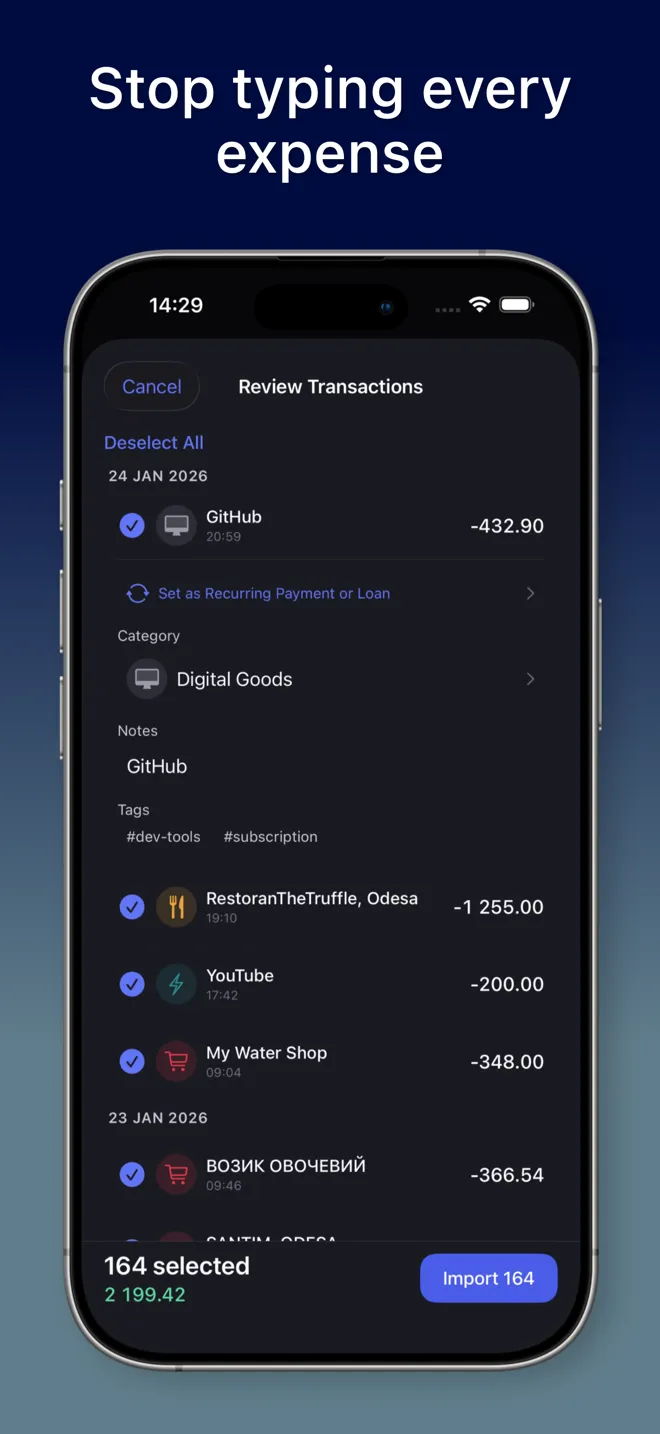
What the review step should catch
The review screen is where a statement import earns its keep. A tool that dumps 300 rows straight into your records, half of them miscategorized, can take longer to clean up than typing would have. Here is what MoneyFlux does before you confirm.
Categories from the bank’s own data
Card payments carry a merchant category code (MCC), a standard code the card network attaches to each merchant. MoneyFlux maps those codes to its 25 expense categories, so a supermarket lands in groceries and a gas station in fuel without you touching it. Raiffeisen statements also carry the bank’s own category label, which is split out of the description so the row stays readable. You can still change any category.
Tag suggestions from the merchant
Merchant names suggest tags: a Bolt ride gets #taxi and #ride, a Silpo purchase gets #groceries and #supermarket, a WOG station gets #fuel and #car. City names in the description become tags as well. Tags are optional, but they make later questions like “how much did that trip cost” easy to answer.
Duplicate detection for overlapping periods
People rarely export clean, non-overlapping months. You grab “last 30 days” one week and “this month” the next. MoneyFlux compares date, amount and description against what is already saved, marks likely duplicates on the review screen, and skips rows that are already in your records at write time. Refunds are not mistaken for duplicates of the original purchase.
Recurring payments that link themselves
If you track subscriptions in MoneyFlux, an imported row whose description matches one of them (say, Netflix) shows a “Matches” chip, and the charge is linked to that subscription when you confirm. You can also mark a new repeating charge right on the review screen so future statements link it automatically. That is the start of a proper picture of what you pay for every month; the guide to tracking subscriptions and recurring payments goes further.
Honest about what it could not read
A partly read statement should not look complete. The review screen shows how many of the file’s rows were read and how many were skipped, so you know when something needs a second look.
What happens to your statement file
A bank statement is about as personal as data gets, so it is worth asking where it goes.
In MoneyFlux, the statement is read on your phone. The file itself is not uploaded to us or anyone else. The resulting transactions sync to your own private iCloud, where only you can read them, so your iPhone and iPad stay in step. There is no sign-up and no bank login to hand over, and no ads or trackers in the app.
One more detail worth knowing: an import sets the card’s balance from the statement’s closing balance, so the account in MoneyFlux matches what your bank shows for that date.
What you still enter by hand (and how to keep it small)
Importing covers anything that went through a supported bank account. A few things never appear on a statement:
- Cash. A cash purchase is two fields: amount and category. Everything else is optional.
- Cards from banks without a supported format. If your bank offers OFX, QFX or QBO, that usually solves it. If not, those cards stay manual.
- Context. Who the dinner was with, or which purchase was a gift. Notes and tags handle that during review.
For in-store Apple Pay taps on iPhone, there is a free middle ground: a Shortcuts automation can log each contactless purchase the moment you pay. The Apple Pay Shortcuts setup guide walks through it. It covers in-store contactless payments only, not online ones, so a monthly statement import remains the complete record.
Try it in MoneyFlux: download last month’s statement from your bank, tap Import on the Overview screen, and review the rows before anything is saved. Your first import is free.
Make it a monthly habit
The approach that tends to stick is a short routine rather than daily logging:
- Once a month (or once a week, if you like a tighter view), download a statement for each card.
- Import them one after another. Overlaps are fine, because duplicates are skipped.
- Add any cash you spent.
- Open Analytics and look at the month.
That last step is the payoff. Once a full month of real transactions is in, you can see which categories and merchants took the most, which is the subject of the companion guide on where your money goes every month. The statement import section of the features page has the full list of what the importer does.
Frequently asked questions
Can an expense tracker import a bank statement without connecting to my bank?
Yes. You download a statement file from online banking yourself and open it in the app. MoneyFlux works this way: there is no bank login and no bank connection, only the file you choose.
Which file format should I download from my bank?
If your bank offers OFX, QFX or QBO (often labeled Download for Quicken or QuickBooks), pick that, because it is structured data. Otherwise use the CSV or PDF statement your bank provides, as long as the app supports that bank's layout.
What happens if I import the same month twice?
MoneyFlux compares date, amount and description and skips rows that are already in your records, so re-importing an overlapping period does not create doubles.
Is it safe to import a bank statement into an app?
It depends on where the file goes. In MoneyFlux the statement is read on your phone, the file itself is not uploaded, and your records sync only to your own private iCloud, where only you can read them.
Is statement import free in MoneyFlux?
Your first import is free, so you can try it with a real statement. After that, importing statements is part of MoneyFlux Premium.