The budget spreadsheet vs expense tracker app question usually starts with a small annoyance. Your spreadsheet works. It has the categories you chose, formulas you trust, and years of history. But it lives on a laptop, and you spend money from your phone. By Friday there are twelve receipts in your pocket and a promise to “catch up on the weekend”.
This is an honest comparison. A spreadsheet is a good tool and for some people it is the right one. It also has specific places where it breaks. If you know which of those you actually hit, the choice gets easy.
When is a budget spreadsheet enough?
A spreadsheet is a blank grid with a formula engine. That is its strength. Nobody decides your categories, your columns or your charts for you.
It is enough when most of these are true:
- You log at a desk. You sit down once a week with your bank’s website open and type or paste the rows.
- You use one currency. Every amount can be summed with a plain
SUM.
- You have few accounts. One card, maybe a savings account. No cash envelope, no second bank.
- You like building it. For some people the formulas are the hobby, and that is a perfectly good reason.
- You need custom analysis. Pivot tables, scenario planning, your own weird metrics. No app will match a spreadsheet here.
If that describes you, keep the spreadsheet. A tracker app would mostly change where you type.
What a spreadsheet does well that apps often don’t
A spreadsheet is yours in a very literal way. It is a file. You can copy it, email it to yourself, open it in ten years. There is no company that has to stay in business for your history to survive, and no account that can be locked.
That ownership is the main reason people stay with spreadsheets, and it is a good one. We will come back to it, because it is the part worth keeping.
Where an expense tracking spreadsheet breaks
The problems are rarely about formulas. They are about getting the data in, keeping it clean, and dealing with real life: several cards, cash, charges that repeat, and money in more than one currency.
Entry from a phone
Spreadsheet apps on a phone technically work. In practice, tapping into cell B482, switching to the number keyboard, then scrolling to find the category column while standing at a till is how logging stops. The gap between “I spent it” and “I wrote it down” grows, and the weekly catch-up becomes a monthly one.
A tracker app is built around that moment. In MoneyFlux, adding an expense is an amount and a category; everything else is optional. On iPhone, a Shortcuts automation can also log in-store Apple Pay taps for you, tagged #applepay, without opening the app. It only covers contactless payments in a shop, not online orders, but those are often the ones you forget.
Importing bank statements
Most banks let you download a statement as CSV, PDF or OFX. Getting that into a spreadsheet means opening the file, fixing the date format, deleting the header rows, splitting the amount column into debit and credit, and mapping each merchant to your category by hand. Every bank does it differently, and some change the layout without warning.
MoneyFlux reads the statement on your phone and detects the format from the file itself: PrivatBank CSV, Monobank CSV, Oschadbank, Raiffeisen Bank, A-Bank and Scotiabank PDFs, OFX/QFX/QBO from any bank, and the Saldo app’s CSV export. You review the rows, change a category, add a note or tag, skip what you don’t want, and only then confirm. The file itself is not uploaded. There is a full walkthrough on the bank statement import page. The first import is free; after that, imports are part of Premium.
Duplicates
Statements overlap. You download March on the 2nd of April, then the next export starts on the 28th of March. In a spreadsheet you either remember to trim the overlap or you count four days twice. Conditional formatting can flag exact duplicates, but a single changed space in the description defeats it.
When you import a statement in MoneyFlux, rows already in your records are flagged on the review screen and skipped, so re-importing an overlapping period doesn’t add anything twice.
Recurring charges
A spreadsheet only knows about a subscription after it has charged you. You can add a “recurring” sheet, but it won’t remind you three days before Netflix renews, and it won’t notice that the annual domain renewal is due next week.
In MoneyFlux, Commitments (Premium) keeps subscriptions and recurring payments in one list with a monthly and annual total, shows a banner three days before a charge, and links matching rows from imported statements to the payment automatically. If this is your main pain, the guide on tracking subscriptions and recurring payments goes deeper.
Multiple currencies
This is where spreadsheets quietly lie. You have a hryvnia card, a Canadian account and some dollars in cash. To get one total, you add an exchange-rate cell. That rate is from the day you typed it. Six months later your “total” is built on a number nobody checked.
MoneyFlux supports UAH, USD, EUR, CAD, GBP, CHF, PLN and RON and keeps totals per currency. It has no exchange rates at all, on purpose, so it never shows a combined figure based on a rate it invented. If you want to know why, read how to track expenses in several currencies.
Budget spreadsheet vs app: side by side
|
Spreadsheet |
MoneyFlux |
| Logging a purchase on a phone |
Possible, slow |
Amount and category; Apple Pay taps can log automatically |
| Bank statement import |
Manual cleanup per bank |
Format detected from the file, review before saving (first import free, then Premium) |
| Duplicate rows |
Up to you |
Flagged and skipped on import |
| Recurring charges and reminders |
A separate sheet, no reminders |
Commitments with a banner 3 days ahead (Premium) |
| Several currencies |
One rate cell, easily stale |
Totals per currency, no conversion |
| Custom formulas and pivots |
Unlimited |
Fixed views; export CSV for your own analysis |
| Sign-up |
None |
None |
| Where data lives |
A file you control |
Your phone and your own private iCloud |
| Getting data out |
It is already a file |
CSV, PDF statement and JSON backup (Premium, kept forever once subscribed) |
| Cost |
Free if you own the software |
Free core; Premium is a subscription |
The table is not a scoreboard. If the left column already works for you, it works.
Why people keep spreadsheets (and how to keep that in an app)
Ask people why they still use a spreadsheet and you rarely hear “I love VLOOKUP”. You hear two things.
“I don’t want to hand my money data to a company”
Fair. Many money apps start with an email, a password and a request to connect your bank. MoneyFlux has no sign-up at all. It doesn’t connect to your bank either: you pick a statement file you already downloaded, and it is read on your phone. Your records sync to your own private iCloud, where only you can read it. No ads. No trackers. No sign-up.
Two things can leave the app, and you approve both: a subscription receipt if you buy Premium, and a summary of a screen’s totals if you switch on the optional Ask AI assistant, which is off by default. That is the full list. The privacy and sync section on the features page has the detail.
“If the app disappears, my history disappears”
This is the stronger argument, and an export button is the only honest answer to it. In MoneyFlux, Settings has an Export data screen:
- Pick a dataset: Transactions, Accounts, Capital, Positions or Commitments.
- Pick a range: 30 days, 90 days, this year or all time.
- Choose CSV for that dataset, a multi-page PDF statement, or a full JSON backup of every record.
- Send it anywhere through the share sheet: Files, email, your own cloud folder.
Export is part of Premium, and once you have subscribed you keep it forever, even if you stop paying. Restoring from a JSON backup is always free, so a backup you made can always be read back in.
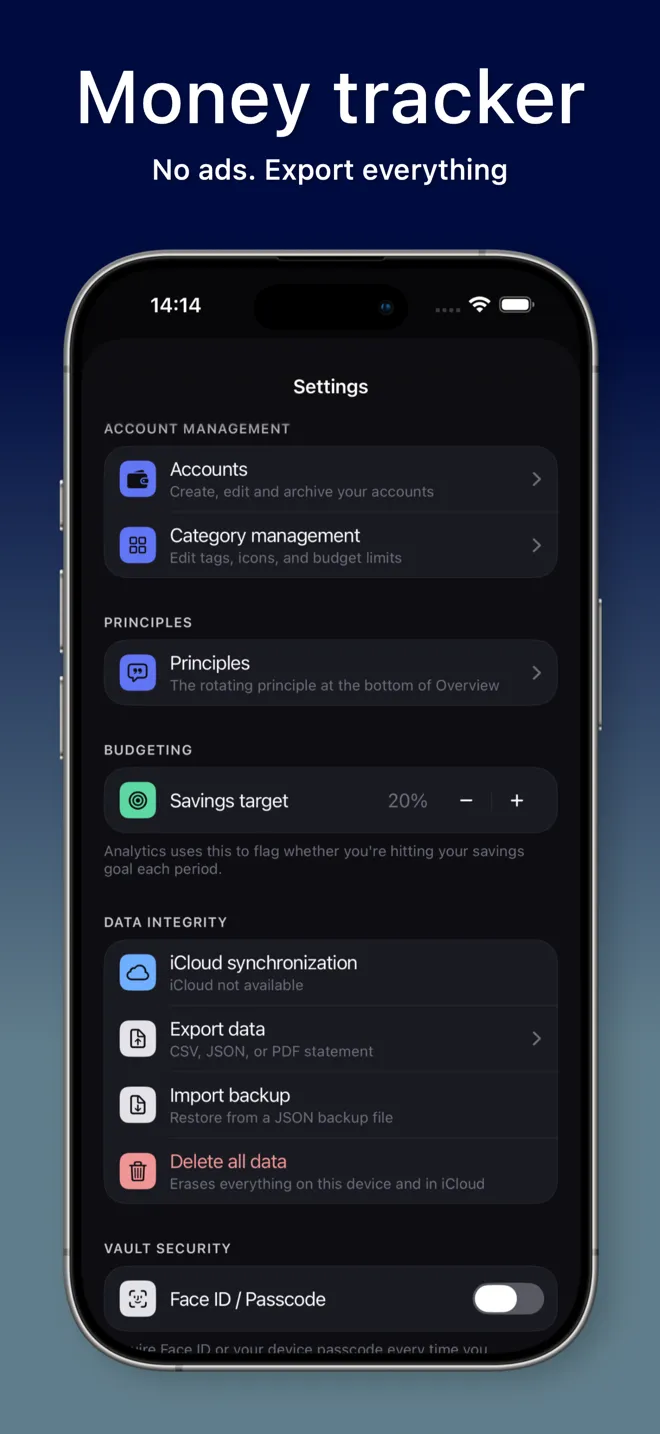
Try it in MoneyFlux: log a week of spending on your phone, then open Settings → Export data and open the transactions CSV in your spreadsheet. If the columns look right to you, you have kept the ownership and lost the typing.
Can you use both?
Yes, and for spreadsheet people this is often the best setup. Let the app handle the parts a spreadsheet is bad at: entry on the go, statement imports, duplicates, reminders. Then pull a CSV into your spreadsheet once a month for the analysis an app will never do your way.
A reasonable routine:
- Log purchases on your phone as they happen, or let Apple Pay logging catch the in-store ones.
- Import the bank statement once a month and review the rows.
- Export the month’s transactions as CSV.
- Paste them into your spreadsheet tab for that month and run your own formulas.
The spreadsheet stops being the place where data entry dies and becomes the place where you think about it.
How to decide in five minutes
Answer these honestly:
- Where do you spend money? Mostly online at a desk: spreadsheet is fine. Mostly in shops from a phone: an app saves you the catch-up.
- How many accounts and currencies? One of each: spreadsheet. Several cards, cash, more than one currency: an app keeps them apart without a stale rate.
- Do repeating charges surprise you? If yes, a spreadsheet won’t warn you.
- When did you last update the sheet? If the answer is “a while ago”, the tool is not the problem the formulas solve.
- What would make you trust an app? If it’s no account, data in a place you control, and a real export, those exist.
If you are still unsure, start where the pain is. If it is “I don’t know where my money went last month”, the post on where your money goes every month is a better first step than picking a tool.
What MoneyFlux won’t do that a spreadsheet will
To be fair to the spreadsheet:
- No custom formulas. Analytics shows expenses, income, net, categories, cashflow and trends. You can’t write your own metric.
- No budgets. There is a savings target as a share of income, not a per-category budget with limits.
- No bank connection. You download the statement and pick the file. That takes a few minutes a month, and nobody holds your banking login.
- No currency conversion. If you need one number across currencies, a spreadsheet with a rate you maintain is the tool for that.
- iPhone and iPad only. It also runs on Apple silicon Macs as an iPad app, but there is no Android or web version.
If any of those are dealbreakers, stay with the spreadsheet, and feel no guilt about it. If the dealbreaker was always “it only works on a laptop”, that is the part an app fixes.