

Import your bank statement into MoneyFlux
Your bank already gives you every transaction in a file. Download it, open it in MoneyFlux, check the rows and import. No bank login, no typing.
Last updated:
Most finance apps want your banking login so they can pull transactions through a third-party connector. MoneyFlux takes a different route: you download the statement file your bank already gives you, and MoneyFlux reads it on your phone. You get the same transactions without handing anyone your credentials, and it works for banks that no aggregator supports.
Supported banks and formats
MoneyFlux detects the source from the contents of the file. You never choose a bank or format from a list.
| Bank or source | File format | What to download |
|---|---|---|
| PrivatBank (Ukraine) | CSV | Card or account statement exported as CSV from Privat24 |
| Monobank (Ukraine) | CSV | Card statement exported as CSV from the Monobank app |
| Oschadbank (Ukraine) | Account statement as PDF | |
| Raiffeisen Bank (Ukraine) | Card statement as PDF | |
| A-Bank (Ukraine) | Card statement as PDF | |
| Scotiabank (Canada) | Monthly account statement as PDF | |
| Any bank | OFX, QFX, QBO | “Download for Quicken / QuickBooks / Money” or “OFX” export |
| Saldo app | CSV | Saldo’s own CSV export, including accounts, splits and transfers |
MoneyFlux is not affiliated with any of these banks. Bank names are used only to describe which statement files the app can read.
How to export a statement from your bank
Menu names change between app versions, but the path is similar everywhere: open the card or account, find Statement (or Export, Download transactions), choose the period and the file format, then share or save the file.
- PrivatBank and Monobank: open the card in the banking app, request a statement for the period you want and choose CSV (sometimes shown as Excel/CSV). Save it to Files or share it straight to MoneyFlux.
- Oschadbank, Raiffeisen Bank and A-Bank: request a card or account statement for the period and choose PDF.
- Scotiabank: in online banking, open the account’s eStatements and download the monthly PDF.
- Any other bank: look for a transaction download in OFX, QFX (Quicken) or QBO (QuickBooks) format. Many North American and European banks offer it in online banking on the web.
For a step-by-step walk-through with the Ukrainian banks, read how to import a bank statement instead of typing every expense.
What happens when you import
- Open the file. Tap Import on the Overview, an empty Analytics screen or an account, and pick the file.
- Pick the card. If one statement covers several cards or accounts, MoneyFlux asks which one to import first, then offers the next.
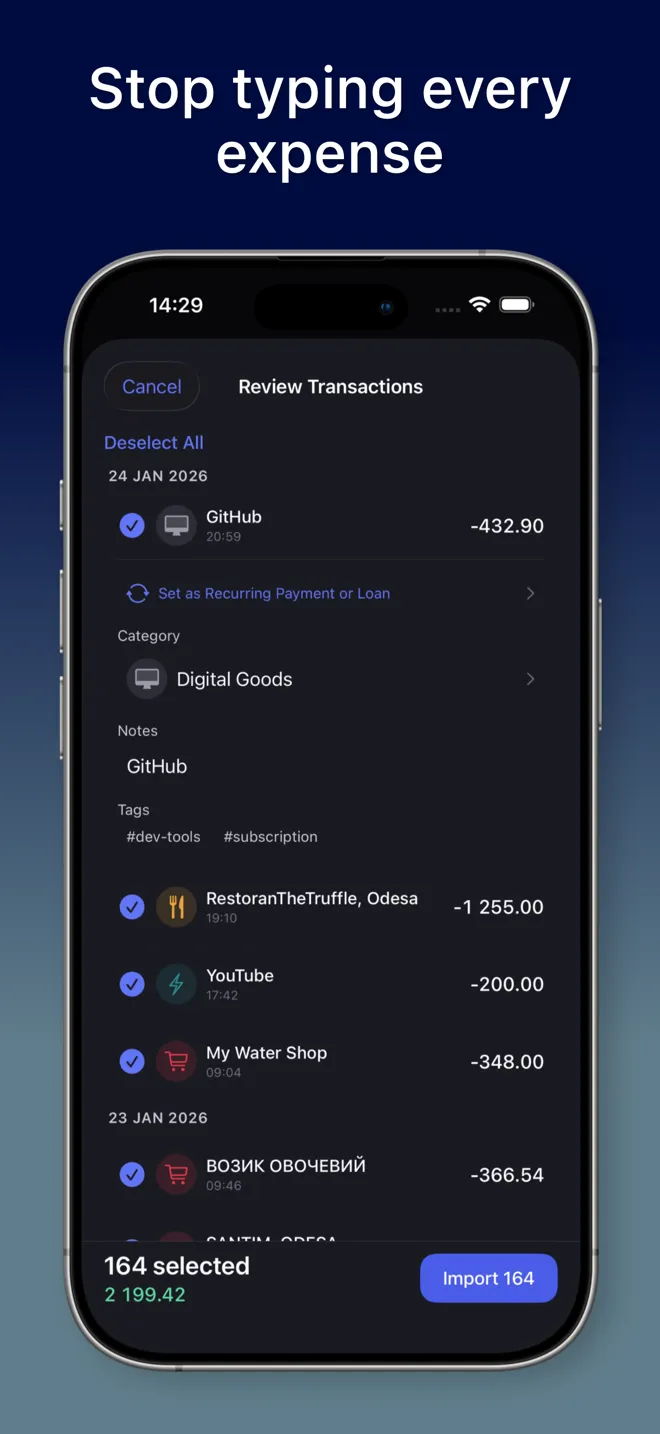
- Review every row. Each transaction shows a suggested category based on the merchant code and description. Recategorize, add a note or tag, skip a row, or turn a repeating charge into a recurring payment. Rows already in your ledger are marked as duplicates and skipped.
- Confirm. Nothing is written until you confirm. MoneyFlux then shows how many rows were imported and skipped and your top categories.
After the import, the account balance is set to the statement’s closing balance, and rows that match a recurring payment, like Netflix or your phone plan, are linked to it automatically. Next month, the same subscriptions file themselves.
Privacy: the file stays on your phone
Statement parsing happens on your device. The file itself is not uploaded anywhere, and MoneyFlux never asks for a banking login, card number or password. The transactions you confirm sync to your own private iCloud, where only you can read them. The full details are in the privacy policy.
Pricing
Your first statement import is free, so you can see your own spending before you pay anything. Unlimited imports come with MoneyFlux Premium, together with Commitments, Positions, capital snapshots and exports. See all features and questions about Premium.
Frequently asked questions
Can MoneyFlux import a statement from a bank that isn't listed?
Yes, if your bank offers an OFX, QFX or QBO download, often labelled Quicken, QuickBooks or Money. Those files follow a common standard, so MoneyFlux reads them whatever bank they come from.
Is my bank statement uploaded anywhere?
No. The file is read and parsed on your iPhone or iPad. Only the transactions you confirm are saved to your ledger, which syncs to your own private iCloud.
Why does my account balance change after an import?
MoneyFlux sets the account balance to the closing balance printed on the statement and records the difference before your imported rows as an opening balance, so the account matches what your bank says.
How many statements can I import for free?
Your first statement import is free. Unlimited imports are part of MoneyFlux Premium; adding transactions by hand and logging Apple Pay purchases stay free.