If you want an expense tracker that imports bank statements, you are probably avoiding one of two things: typing every purchase by hand, or giving an app your banking password so it can pull transactions for you. There is a middle path. Your bank already lets you download a statement file, and a number of apps can read it. They differ a lot in which files they accept, where the file is processed and what you can check before anything is saved.
This guide compares the approaches and names real apps for each. One disclosure up front: MoneyFlux is our app, and it appears below with the same questions applied to it, including what it doesn’t do. Every other app’s details come from its App Store listing or official help pages, checked in October 2026. Features change, so confirm on the listing before you decide.
Why import a statement instead of linking your bank?
Bank linking is convenient. An aggregator such as Plaid logs in on your behalf and pulls new transactions on a schedule. The price is that a third party holds access to your bank account, and links break when banks change their login flow. Coverage also depends on where you live: an app that links to US banks may not reach yours.
Statement import trades that convenience for control. Once a week or once a month, you export a file from online banking and open it in the tracker. Nobody stores your password, and the data comes straight from the bank’s own record. The cost is a few minutes of your time. If you have never exported a statement, the walkthrough on how to import a bank statement instead of typing every expense covers where banks hide the export button.
What to check before you pick an app
Feature lists are long and similar. These questions separate the apps that will actually work for you:
- Which file does your bank export? Look in online banking first. OFX and QFX are standard formats that many North American banks offer. CSV layouts differ by bank. Some banks offer only PDF.
- Does the app read that exact file? “Imports CSV” can mean “any CSV after you label the columns” or “CSV from three specific banks”. Both are fine; know which one you are getting.
- Where is the file read? On your phone, or uploaded to the developer’s server or an AI service? The listing or privacy policy usually says.
- Can you review before saving? You want to see every row, fix categories and skip transfers before they land in your records.
- Are duplicates skipped? Statements overlap. Re-importing the last week of March should not count it twice.
- Does it need an account? Some apps work with no sign-up; others need an email or Sign in with Apple, at least for sync.
- Can you get your data out? An export to CSV or a backup file means your history doesn’t depend on the app.
Three ways apps get transactions without a bank login
Statement files: OFX, QFX, QIF and CSV
This is the most precise approach. The file is structured data from the bank, so dates and amounts come through exactly.
- FiQu imports “any CSV format, CAMT.053/054, OFX/QFX 2.x or QIF” on iPhone and iPad. Its listing says no sign-in is required and that data stays on your devices and iCloud. It also converts between currencies with automatic exchange rates.
- Banktivity supports QIF, OFX, QFX and CSV on iOS through the Files app, Mail or the share sheet; for CSV you label the columns yourself. It also offers its own bank connection service, so file import is one option rather than the whole design. It runs on iPhone, iPad and Mac with a subscription.
- YNAB imports CSV, QFX, OFX and QIF, but its help centre says file import works “on the web app or an iPad” and not on iPhone. Its main path is linking your bank.
PDF statements
Some banks only give you a PDF, so a few apps read the PDF layout directly. This works only for banks whose layout the app knows.
- Summa reads PDF statements you share from your bank. Its listing names banks in Kazakhstan. The listing says statements are processed locally, while its recent version notes mention added AI statement parsing; if that matters to you, ask the developer where it runs.
- MoneyFlux reads PDF statements from Oschadbank, Raiffeisen Bank, A-Bank and Scotiabank, alongside CSV and OFX files (details below).
Screenshots and AI parsing
The newest approach: take screenshots of your banking app and let an AI model turn them into transactions. It works with any bank that shows a transaction list, which is its big advantage.
- Finny imports banking or e-wallet screenshots in batches, plus receipts. Its listing says “No bank login, ever” and that your data stays on your device. Its privacy policy adds that AI inputs such as images are processed on its servers and deleted after processing, which is the usual trade-off with this approach.
Screenshot parsing is convenient but less exact than a file. The model reads pixels, so check amounts and dates on the review screen, especially for long lists.
And the apps that don’t import at all
Some well-known apps are built around bank linking and offer little or no file import on a phone:
- Copilot Money connects accounts through aggregators like Plaid or MX, supports US institutions and US dollars only, and we found no file import in its help centre. Without linking, you enter transactions manually.
- Goodbudget imports QFX and OFX files on its website, not in the iPhone app as far as its help pages show. Subscribers can also use automatic bank sync.
Side-by-side comparison
| App |
How transactions get in without a bank login |
Also links to banks |
Platforms |
| MoneyFlux |
CSV (PrivatBank, Monobank, Saldo), PDF (4 banks), OFX/QFX/QBO from any bank |
No |
iPhone, iPad |
| FiQu |
Any CSV, OFX/QFX, QIF, CAMT |
Not mentioned |
iPhone, iPad |
| Banktivity |
QIF, OFX, QFX, CSV |
Yes |
iPhone, iPad, Mac |
| Summa |
PDF statements (banks in Kazakhstan) |
Not mentioned |
iPhone |
| Finny |
Screenshots and receipts, read by AI |
No |
iPhone |
| YNAB |
CSV, QFX, OFX, QIF on web or iPad only |
Yes |
iPhone, iPad, web, Android |
| Goodbudget |
QFX/OFX on the website |
Yes (subscribers) |
iPhone, web, Android |
| Copilot Money |
None found; manual entry |
Yes (US only) |
iPhone, iPad, Mac, web |
The table is a map, not a ranking. The right app is the one that reads your bank’s file the way you want it read.
Where MoneyFlux fits
MoneyFlux was built for people whose banks either can’t be linked or shouldn’t be. You export a statement, pick the file in the app, and it is read on your phone. The file itself is not uploaded.
What happens next:
- The format is detected from the file. PrivatBank CSV, Monobank CSV, Oschadbank, Raiffeisen Bank, A-Bank and Scotiabank PDF, OFX/QFX/QBO from any bank, and the Saldo app’s CSV export. You don’t choose the bank from a list.
- You review every row. Change a category, add a note or tag, or skip a row before anything is saved. Categories start from the merchant code where the bank provides one.
- Duplicates are skipped. Rows already in your records are flagged, so overlapping statements are safe to import.
- Recurring payments link up. A row that matches a subscription you track is linked to it automatically.
- Currencies stay apart. UAH, USD, EUR, CAD, GBP, CHF, PLN and RON, totalled per currency with no invented exchange rate. The guide to tracking expenses in several currencies explains why.
There is no sign-up, no ads and no trackers. Records sync to your own private iCloud, where only you can read it. The first import is free; after that, statement import is part of Premium. The full list of banks and how to export from each is on the bank statement import page.
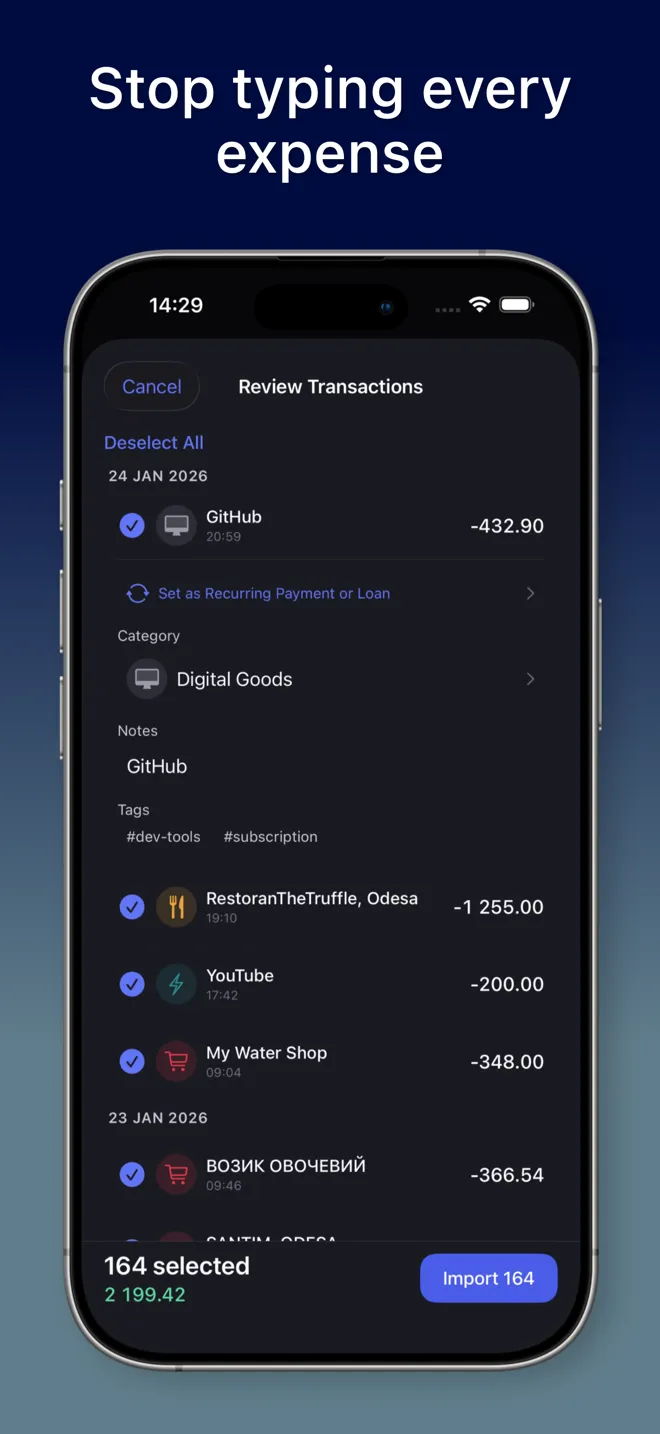
Try it in MoneyFlux: download last month’s statement from your bank, open it in MoneyFlux and go through the review screen. The first import is free, so you can see how your bank’s file comes through before deciding anything.
What MoneyFlux doesn’t do
To keep the comparison fair:
- No bank feed. You download each statement yourself. That takes a few minutes a month.
- No universal CSV. CSV import covers specific layouts (PrivatBank, Monobank, Saldo). For other banks, export OFX or QFX if they offer it.
- No currency conversion. If you need one total across currencies, FiQu or Banktivity convert with exchange rates.
- No budgets. There is a savings target as a share of income, not per-category limits.
- iPhone and iPad only. It also runs on Apple silicon Macs as an iPad app; there is no Android or web version.
How to choose
Match the app to your bank and your tolerance for trade-offs:
- Your bank exports OFX or QFX: almost any file importer works. Pick by what else you need: multiple currencies kept apart, conversion, a Mac app.
- You bank with PrivatBank or Monobank: MoneyFlux reads their CSV statements directly, along with PDFs from Oschadbank, Raiffeisen Bank and A-Bank.
- Your bank only gives PDFs: you need an app that knows that bank’s layout. Check the supported list before installing.
- Your bank gives no usable file at all: screenshot parsing is the fallback. Read the privacy policy to see where images go.
- You’d rather stay in a spreadsheet: that is a real option too. The budget spreadsheet vs app comparison covers when it is the better tool.
Whichever you choose, try it on one real month first. One statement through the review screen tells you more than any feature list, this one included.
Frequently asked questions
Is there an expense tracker that imports bank statements without linking my bank?
Yes. Several iPhone apps read a statement file you download yourself, among them MoneyFlux, FiQu and Banktivity, and some read PDF statements or screenshots instead. Check which file your bank exports before you choose.
Which bank statement format is best to import?
OFX or QFX if your bank offers it, because the format is standard and every row has a clean date and amount. CSV works when the app knows your bank's column layout. PDF works only if the app supports that bank's layout.
Is importing a statement safer than connecting my bank account?
It avoids giving anyone your banking login, which is the main risk with bank linking. Where the file is processed still matters: an app that reads it on your phone keeps it off servers, while AI parsing usually uploads it.
Can I import a bank statement into YNAB or Copilot on iPhone?
YNAB's help centre says file import works on the web app or an iPad, not on iPhone. Copilot Money connects accounts through aggregators such as Plaid, and we found no file import in its help centre.
Which banks does MoneyFlux read statements from?
PrivatBank and Monobank CSV; Oschadbank, Raiffeisen Bank, A-Bank and Scotiabank PDF; OFX, QFX or QBO from any bank; and the Saldo app's CSV export. The format is detected from the file.