Most people who try to track all their bank accounts in one app hit the same wall: the money is not in one place. There is a salary card, a second card at another bank for daily spending, a few banknotes in a wallet, maybe a crypto wallet on an exchange. Each lives in its own app, or in no app at all. Your bank shows its own slice. The cash and the crypto show up nowhere.
This guide walks through a setup that puts cards, cash and crypto on one screen, keeps transfers from looking like spending, and does it without handing anyone your banking login. The examples use MoneyFlux, an iPhone and iPad expense tracker, but the habits work in any ledger, including a spreadsheet.
Why your bank app can’t show the whole picture
Your bank’s app knows your bank. It does not know about the card at the other bank, the 2,000 hryvnias in your jacket, or the stablecoins you bought last spring. Even Apple Wallet only shows cards, and each card separately.
Aggregator apps try to fix this by logging in to every bank for you. That has two costs. First, a third party holds credentials to your accounts. Second, many banks are not supported at all, especially outside the US. Ukrainian banks and smaller Canadian ones are often missing from aggregator lists.
The alternative is a ledger you own. You list every place money sits, feed card accounts from the statement files your banks already give you, and log cash and crypto by hand. It takes a few minutes a month. In return, nothing depends on a bank connection that can break, expire or leak.
Step 1: make one account for every place money sits
The rule is simple: if you would check it to answer “how much do I have?”, it gets its own account.
In MoneyFlux an account has a name, a type, a currency, a starting balance and a colour. There are four types:
| Account type |
Use it for |
How it stays up to date |
| Bank card |
Each debit or credit card, each bank account |
Statement import, Apple Pay logging, manual entries |
| Cash |
Wallet cash, a cash envelope at home, cash in another currency |
Manual entries and transfers from a card |
| Crypto |
An exchange account or a self-custody wallet |
You type the current value when you check |
| Other |
A gift card, a prepaid transport card, money held for someone |
Manual entries |
A few setup details that save trouble later:
- One account per card, not per bank. If you have a hryvnia card and a dollar card at Monobank, that is two accounts. Each card has one currency.
- The starting balance matters. The balance you type when you create the account becomes a real “Opening Balance” transaction, so the history adds up from day one.
- Pick a colour you’ll recognise. On the Overview screen you swipe through accounts as cards. A strong colour per account means you know which one you’re on before reading the name.
- Currency and type are fixed after creation. Changing them would rewrite history, so the edit screen shows them locked. Get them right the first time.
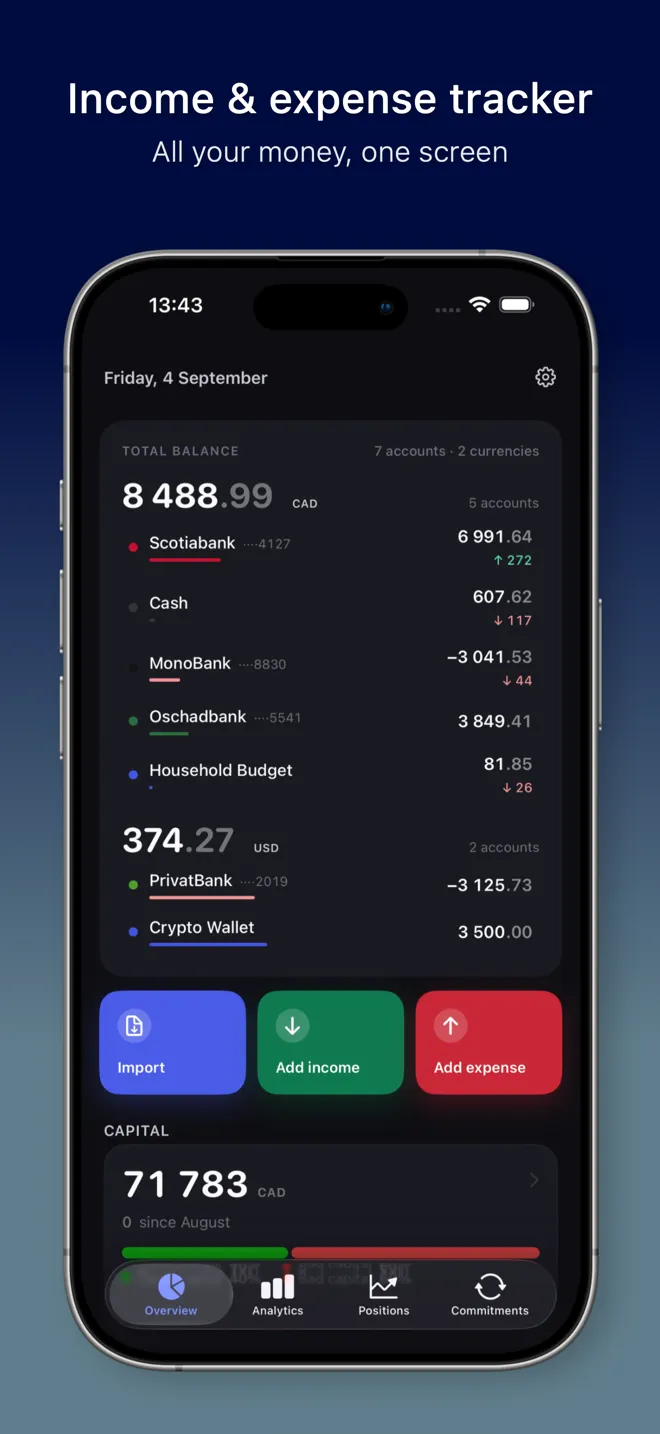
Once the accounts exist, the Overview shows your balance grouped by currency, with each account’s share of it. Swipe the account carousel and the income, expense and recent transactions below follow the account you are looking at. The Accounts list (Overview, then “See All”) shows every account with per-currency totals.
Accounts you no longer use
Closed a card? Hide the account instead of deleting it. A hidden (archived) account drops out of your totals but keeps its history. Deleting an account removes its transactions too, and the app warns you before it does.
Step 2: record transfers as transfers, not as spending
This is the step most people get wrong, and it quietly ruins their numbers.
Say you move 5,000 from your salary card to your spending card. If you record it as an expense on one card and income on the other, your Analytics will show 5,000 of spending you never did, and 5,000 of income you never earned. Do that every month and your spending total is fiction.
A transfer is different: your total stays the same, one account goes down and the other goes up. In MoneyFlux you open the source account, tap the menu, and choose Transfer. You pick the destination, type the amount, and the app shows what both balances will be afterwards, in red if the source would go negative.
Typical transfers worth recording as transfers:
- Salary card to daily card.
- ATM withdrawal: card to cash account.
- Depositing cash back to a card.
- Card to the exchange account you use for crypto, if both are in the same currency.
- Topping up a savings card or a savings goal.
Same currency only
Transfers only work between accounts in the same currency. Try to move money from a USD card to a UAH card and the app stops you with a plain message: the currencies have to match. That is deliberate. A cross-currency transfer needs an exchange rate, and the rate your bank actually used is the only correct one. MoneyFlux does not invent rates.
If you exchange currency, record it as money out of one account and money in on the other, with a note of the rate you got. The full reasoning, and a cleaner way to handle it, is in our guide to tracking expenses in multiple currencies.
Step 3: build a cash tracking habit that survives a busy week
Cash is the part of the ledger that has no statement. Nobody will send you a file listing what you paid at the market. So cash tracking is a habit, not a feature, and the trick is to make the habit small.
Log cash the same day
The longer you wait, the more you forget. Logging a cash expense in MoneyFlux takes an amount and a category. Date, description and notes are optional and folded away. If you only have one account, the app doesn’t even ask which; with several, pick the cash account.
A realistic routine:
- At the till: log anything over a small amount right away, while the receipt is in your hand.
- In the evening: count what is left in your wallet. If it doesn’t match the app, log the difference as a single “small cash spending” expense. That is honest and keeps the balance right.
- On ATM days: record the withdrawal as a transfer from the card to cash, never as an expense. The spending happens later, when the cash leaves your wallet.
Avoid double counting with imported statements
If you import your card statement later, the ATM withdrawal will appear there as a row too. You already recorded it as a transfer, so on the import review screen, skip that row. Every row in the review can be recategorised, tagged, noted or skipped before anything is saved.
Cash in another currency
Holding some dollars or euros in cash? Make a separate cash account in that currency. “Cash UAH” and “Cash USD” side by side is clearer than one cash account with a mental note about which notes are which.
Step 4: track crypto wallets by hand
MoneyFlux has a crypto account type, and it is worth being clear about what it does and does not do.
What it does: it holds a balance, in one of the app’s eight currencies (UAH, USD, EUR, CAD, GBP, CHF, PLN, RON), that sits next to your cards and cash on the Overview. Most people record crypto holdings in USD, since that is how exchanges quote them.
What it does not do: there is no price feed and no exchange connection. The app does not know what your coins are worth today. You check your exchange or wallet, and update the balance.
That sounds like a limitation, and it is one. It is also honest. A crypto balance that moves every second is noise when you are trying to see where your monthly money goes. A practical rhythm:
- Update the crypto account when you buy or sell, by recording a transfer in or out (from a USD card, for example).
- Revalue it on a fixed schedule, say once a month, by logging the change as income or an expense. Give it its own custom category, such as “Crypto revaluation”, so it is easy to tell apart from real spending in Analytics.
- Keep trades out of this account. If you actively trade or follow signal channels, the Positions journal (Premium) is built for that: entries, exits, fees and funding per position. It also has no price feed; you type the mark price. Our post on checking a trading signals track record shows what it is for.
If you hold crypto as a long-term asset rather than spending money, it can also live in Capital, which values assets by quarterly snapshots instead of daily prices.
Step 5: keep card accounts current with statement imports
Typing every card purchase is the reason most people give up on expense tracking. You don’t have to.
Every bank lets you download a statement. MoneyFlux reads these files on your phone: PrivatBank and Monobank CSV, Oschadbank, Raiffeisen Bank, A-Bank and Scotiabank PDF, OFX, QFX and QBO files from any bank, and the Saldo app’s CSV export. It works out which bank the file is from by its contents. The file itself is not uploaded anywhere.
The import goes into one card’s account at a time, which is exactly what you want when you track several cards:
- Download the statement from your bank app or online banking.
- Open the card’s account in MoneyFlux and tap Import (or use Import on the Overview).
- If the statement covers several cards, pick which card this is. After importing it, the app offers the next card from the same file.
- On the review screen, check categories, add tags or notes, and skip rows you already logged, like an ATM withdrawal recorded as a transfer.
- Confirm. Duplicates from overlapping periods are skipped automatically.
After an import, the account balance matches the statement’s closing balance. Your first import is free; after that, imports are part of Premium. See which files work on the bank statement import page, and the step-by-step in how to import a bank statement instead of typing every expense.
Try it in MoneyFlux: create one account per card, a cash account and a crypto account, then import last month’s statement into your main card. The Overview will show every account, grouped by currency, on one screen.
Between statements: Apple Pay purchases
Statements arrive monthly; you buy coffee daily. On iPhone, a Shortcuts automation can log in-store Apple Pay taps into the right card account as they happen, tagged #applepay. It only covers contactless purchases in shops, not online ones, and it’s free. Setup is in our guide to logging Apple Pay purchases automatically.
A monthly routine for all your accounts
Put together, a full month looks like this:
- Daily: log cash spending. Apple Pay taps log themselves if you set up the automation.
- When it happens: record transfers between your own accounts, including ATM withdrawals.
- Once a month: download each card’s statement and import it. Update your crypto balance. Count your cash and log any difference.
- Then: open Analytics. Use the account chips to look at one card at a time, or the whole picture for one currency.
That’s ten to fifteen minutes a month for a complete view of where your money sits and where it went. No bank password shared, no ads, no sign-up. Your records sync to your own private iCloud, where only you can read them, and you can export everything (CSV, PDF, JSON backup) with Premium.
What this setup won’t do
Being clear about limits saves frustration:
- No automatic bank feed. Someone has to download the statement. If you want live balances pushed from your bank every hour, an aggregator app is the better fit.
- No live crypto prices. You update the value yourself.
- No single total across currencies. A hryvnia card and a dollar wallet are shown side by side, each in its own currency, never added together with a made-up rate. Our multi-currency features explain why.
If those trade-offs work for you, one ledger with every card, your cash and your crypto is a weekend afternoon of setup and a short monthly habit after that.