

Bank statements
QFX File: What It Is and How to Open or Import One
You clicked Download on your bank's site, got a file ending in .qfx, and double-clicking it did nothing useful. Here is what is inside it and where it can go.
Bank statements
Your bank has every transaction on file, but the download button is hard to find and the file sometimes opens as garbage. Here is the path that works at most banks, and what to do when it doesn't.
To export a bank statement as a CSV file, sign in to online banking on a computer, open the account, and look for Download, Export or Download transactions next to the transaction list. Pick a date range, choose CSV, and save the file. At most banks that is the whole job, five minutes if you can find the button. The trouble is that the button is easy to miss, the file sometimes opens badly, and a few banks don’t offer CSV at all.
One warning before you spend those five minutes. If you want to import the file into MoneyFlux, its CSV import covers only PrivatBank, Monobank and the Saldo app. A CSV from Chase or Barclays won’t import. For those banks, ask for OFX or QFX instead (more on that below).
Menus differ, so we can’t give you taps that match your bank. These are the places the button usually hides:
We haven’t checked any bank’s current screens for this post. If yours looks different, the bank’s help page wins.
If you have several accounts or cards, repeat the steps for each. Don’t merge them into one file by hand. Mixed accounts are hard to untangle later.
A CSV is a text file where each line is one transaction and the values are separated by a comma or a semicolon. Open it in a text editor and you’ll see something like a header line, then a row per purchase.
What you get differs a lot between banks. One puts the date first and the amount fourth. Another splits money out and money in into two columns. Another adds a running balance, a merchant code or a card number. There is no standard, which is why importing a CSV into an app is harder than it looks. The app has to know your bank’s layout, or you have to map the columns yourself.
Two problems cover most bad files.
Everything is in one column. The bank used semicolons and your spreadsheet expects commas, or the other way around. This depends on the language and region settings of your computer. Don’t double-click the file. In Excel, use Data, then From Text/CSV, and choose the delimiter yourself. In Numbers or Google Sheets, the import dialog has the same option.
Letters turn into question marks or odd symbols. This happens a lot with Cyrillic and accented names. The file uses one text encoding and the spreadsheet guesses another. In the import dialog, try changing the file origin or encoding to UTF-8, or to Windows-1251 for Cyrillic files from some older exports. The data in the file is fine, only the reading is off.
Two smaller traps:
Some banks give you nothing but a monthly PDF. In that case:
MoneyFlux reads CSV from three sources: PrivatBank, Monobank and the Saldo app’s own export. You don’t pick a bank from a list, because the app recognizes the file from what is inside it. For any other bank, MoneyFlux reads OFX, QFX and QBO files, plus the PDF layouts mentioned above. That means a CSV from, say, a Canadian credit union won’t import. Look for its OFX or QFX option instead.
Here is the path on iPhone:
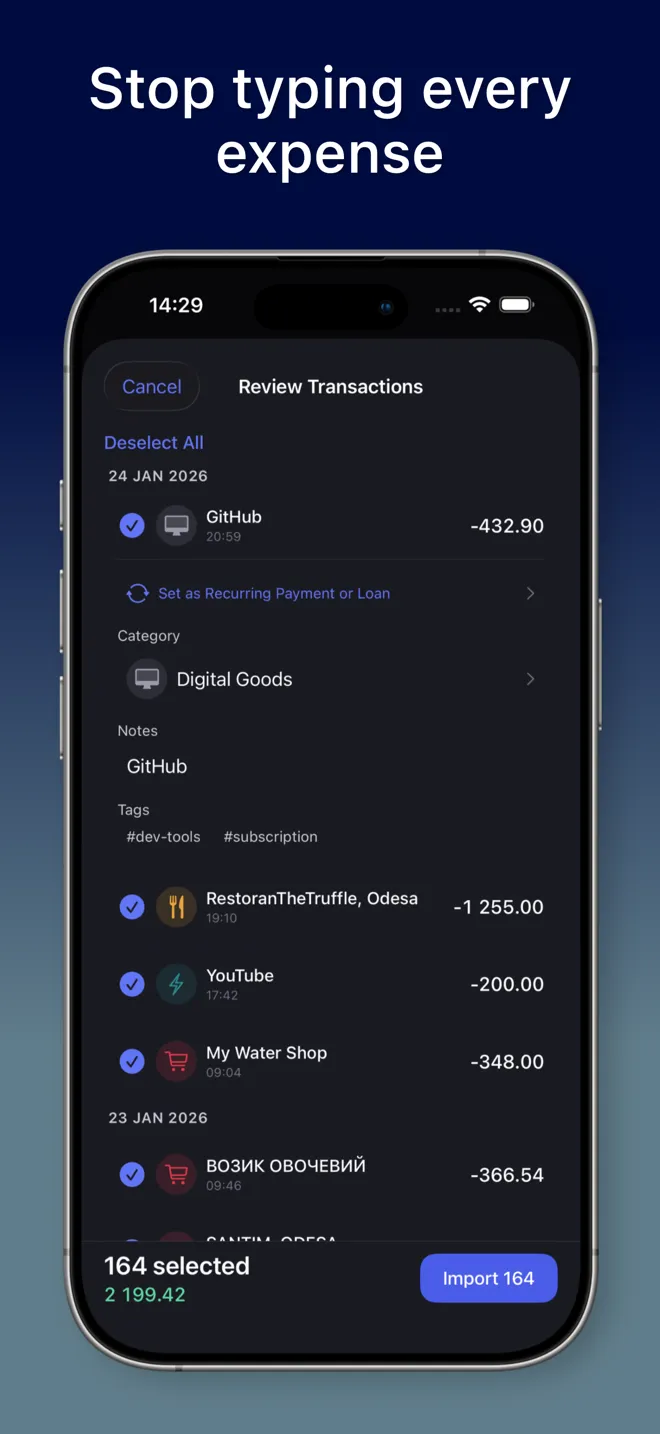
Rows already in your records are skipped as duplicates, so overlapping date ranges are safe. The full list of banks is on the bank statement import page, and the longer walk-through is in how to import a bank statement instead of typing every expense.
Try it in MoneyFlux: export last month from your bank as CSV (PrivatBank or Monobank) or as OFX or QFX (other banks), tap Import on the Overview screen, and check the rows before you confirm. Your first import is free.
If the export button is greyed out, try a shorter range or a single account, because some banks block long exports. An empty file usually means the range had no transactions, or you downloaded before the page finished loading. Missing rows are often pending card holds, which banks leave out until they settle. If an app says it can’t read the file, the layout is probably one it doesn’t support, so download the same range as OFX, QFX or PDF and try again.
If your bank has no export at all, you can type purchases by hand or log in-store Apple Pay taps automatically with Shortcuts.
Exporting is manual. You download a file, you open it, you review it. MoneyFlux has no live bank connection, never asks for your bank login, and doesn’t pull new transactions by itself. Each fresh month means a fresh file.
It also doesn’t convert CSV files from other banks into something it can read, and it runs on iPhone and iPad (and on Apple silicon Macs and Apple Vision Pro as an iPad app), not on Android or the web. The first import is free; further imports are part of Premium.
The export shows where you shop and when, so treat it like a statement. MoneyFlux reads it on your phone and the file itself is not uploaded. Only the rows you confirm are saved, and they sync to your own private iCloud, where only you can read them. Delete the file from Downloads or Files when you are done.
Once a month is in, open Analytics and look at the category totals. Where your money goes every month shows how to read them.
Sign in to online banking in a web browser, open the account, find Download or Export next to the transaction list, pick a date range and choose CSV. Menu names differ by bank, so check the bank's help page if you can't find it.
Some banks separate values with semicolons, and Excel in some regions expects commas. Use Data, then From Text/CSV, and set the delimiter by hand instead of double-clicking the file.
Look for OFX, QFX or QBO, often labelled Quicken or QuickBooks. If there is only a PDF statement, check whether the app you want to use can read that bank's PDF.
Not always. Every bank lays out its CSV differently, so an app needs to know each layout. MoneyFlux reads CSV from PrivatBank, Monobank and the Saldo app. For other banks it reads OFX, QFX and QBO.
It is a plain-text list of your purchases, so treat it like a bank statement. Delete it from Downloads and Files once you have imported it.