A QFX file is a download from your bank that was made for Quicken. It holds your transactions as text: dates, amounts and descriptions, one entry per purchase or deposit. If you landed here with a .qfx file and no idea what to do with it, the short answer is that you import it into a program that reads QFX. You don’t open it like a spreadsheet.
What is a QFX file?
QFX stands for Quicken Financial Exchange. It is a version of the OFX format (Open Financial Exchange), the standard many banks use to hand over account activity. A QFX file follows the OFX rules and adds extra fields that Quicken checks when it imports. In short, QFX is OFX with a few extra fields Quicken wants.
In practice:
- It is a text file, not a binary one. Open it in Notepad or TextEdit and you can read it, though you won’t enjoy it. There is a header at the top, then the account, then a block for each transaction.
- It describes one account or card for the date range you picked when you downloaded it. Open one in a text editor and the first lines are a short header (OFXHEADER and similar keywords), followed by an OFX block that holds the account and its transactions.
- Dates and amounts sit in fixed tags, so an app never has to guess which column is which.
Banks usually label the download “Quicken”, “Web Connect” or “Download to Quicken”. That is the QFX option.
QFX vs OFX vs QBO
The three look alike because they share a base.
| Format |
Made for |
Where you see it |
| OFX |
The open standard, any software |
Often just called “OFX” or “Money” in a download menu |
| QFX |
Quicken |
“Quicken” or “Web Connect” |
| QBO |
QuickBooks |
“QuickBooks” |
Quicken is picky. Propersoft, a maker of Quicken conversion tools, says Quicken imports QFX and not .ofx files, so an .ofx from the same bank may be refused there. Other apps are usually more relaxed and accept more than one of the three. So the practical rule is to read your target app’s help page first, then pick the matching option in the bank’s download menu.
If a download menu offers all three and your app is not Quicken, try OFX first, then QFX, then QBO. The data is the same kind. The label only changes who the file is meant for.
How to open a QFX file
Pick the goal first.
To import transactions: open it in the app. Quicken for Windows or Mac does it. On an iPhone or iPad, an expense tracker that reads QFX does it. Double-clicking a QFX file on a computer without one of those apps installed will do nothing, or ask which program to use.
To look inside: right-click, choose Open With, and pick a text editor. You will see a header, some account details and then the transactions. Don’t edit and save it, because a stray character can make the file unreadable for importers. If you only want to check a date range or an amount, reading is fine.
To get it into a spreadsheet: a QFX file is not a CSV, so Excel won’t lay it out in columns. You would need a converter, or an app that reads the file and lets you export. That is a reason to import it somewhere that understands it rather than fight with it.
Where to get a QFX file from your bank
Every bank words this differently. Expect something close to this:
- Sign in to online banking in a web browser. Many banks hide the download in the web version and leave it out of their phone app, so a computer is the safer bet.
- Open the account or card and find the transaction list.
- Look for Download, Export or Download transactions.
- Pick the date range. A month at a time is easy to check.
- Choose the format: Quicken (QFX), or OFX or QuickBooks (QBO) if QFX is not listed.
- Save the file, then send it to your phone, for example through iCloud Drive or AirDrop.
Some banks offer no download at all, or only CSV and PDF. If yours does not have QFX, check the list of supported banks and formats, since MoneyFlux also reads several CSV and PDF layouts.
How to import a QFX file into MoneyFlux
MoneyFlux reads QFX, OFX and QBO files from banks that offer them. You don’t choose a bank or a format. The app detects the file type from what is inside it. Here is the path on iPhone:
- Put the file where your phone can reach it: the Files app, iCloud Drive, or a share from Mail.
- In MoneyFlux, tap Import on the Overview screen. An empty Analytics screen and an account page have the same button.
- Pick the QFX file.
- If the file lists more than one account, choose which to import first. The app offers the next one after that.
- Review the rows. Each transaction has a suggested category. You can change it, add a note or tags, or skip a row.
- Confirm. Nothing is written to your records until this step.
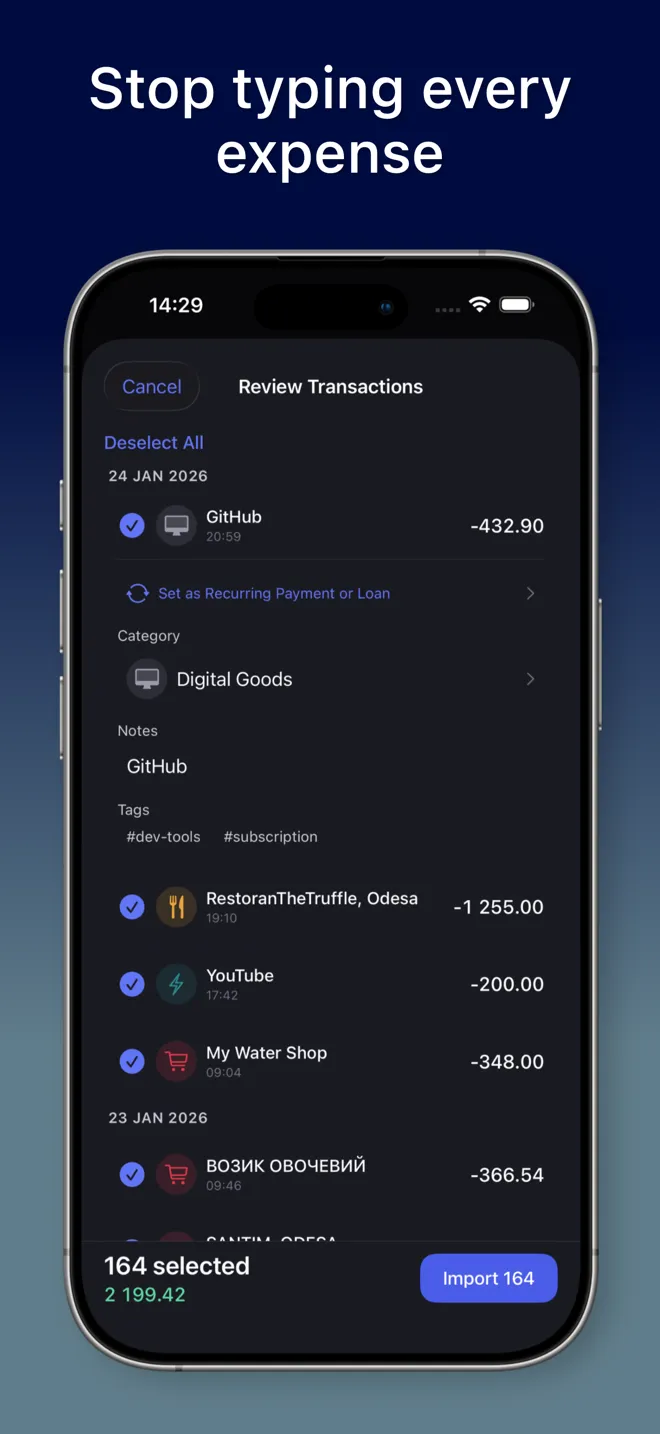
Rows that are already in your records are marked as duplicates and skipped, so overlapping date ranges are safe. If a row looks like one of your subscriptions, it can link to it automatically. The step-by-step version with other file types is in how to import a bank statement instead of typing every expense.
Try it in MoneyFlux: download last month’s transactions from your bank as QFX, tap Import on the Overview screen, and review the rows before you confirm. Your first import is free.
Why QFX is easier than CSV or PDF
A CSV from one bank puts the date in column one and the amount in column four. Another bank swaps them, or splits debits and credits into two columns. An app has to know each layout. A PDF is worse: the app has to find rows in a page that was designed for people.
A QFX file has the same structure whatever bank it came from. That is why the format works for “any bank” in a way a CSV cannot. If you want a wider look at which apps read which files, see the comparison of expense trackers that import bank statements.
When a QFX import goes wrong
A few things come up often enough to be worth checking:
- The app says it can’t read the file. Download the same range as OFX or QBO and try again. Also check that the file really ends in .qfx and that it was not saved as a web page. If you open it in a text editor and see HTML tags or a login page, the download failed.
- Nothing shows up after import. The date range may be empty, or every row may already be in your records and was skipped as a duplicate. The summary after the import says how many rows were imported and how many were skipped.
- The balance changes after import. MoneyFlux sets the account balance to the closing balance on the statement and records the difference before the imported rows as an opening balance, so the account matches what your bank says.
- Wrong currency or account. MoneyFlux keeps each currency separate and does not convert between them. If the file is in a currency you haven’t set up, create an account in that currency first.
- Categories are wrong. A QFX file usually contains a merchant description but no category you would pick. Expect to correct some on the review screen. That is normal for any importer, not a fault in the file.
What this won’t do
Importing from a file is manual. You download it, you pick it, you review it. There is no live bank connection in MoneyFlux, and it does not log in to your bank or pull new transactions on its own. If you want a fresh month, you download a fresh file.
It also does not edit QFX files or convert them to other formats, and it does not run on Android or the web. It is for iPhone and iPad, and it runs on Apple silicon Macs and Apple Vision Pro as an iPad app. Your first import is free; further imports are part of Premium.
Is it private?
A bank file is personal. In MoneyFlux the file is read on your phone, and the file itself is not uploaded. There is no sign-up and no bank login. The transactions you confirm sync to your own private iCloud, where only you can read them. Delete the downloaded file from your phone and computer when you are done, since it sits in Files or Downloads until you do.
After one month is in, open Analytics and look at the category totals. The guide to where your money goes every month shows how to read them.
This is general information, not financial advice.
Frequently asked questions
What is a QFX file?
A text file of bank or card transactions made for Quicken. It follows the OFX standard and adds extra fields Quicken looks for. Banks offer it as a download, often labelled Quicken or Web Connect.
What is the difference between QFX and OFX?
QFX is an extended version of OFX. Both hold the same kind of data: account, dates, amounts and descriptions. Quicken imports QFX files, and many other apps accept OFX or QFX or both.
How do I open a QFX file?
To import it, open it in Quicken or in an app that reads QFX, such as MoneyFlux on iPhone. To just look inside, open it in a text editor like Notepad or TextEdit. The file is plain text.
Can I import a QFX file into an app other than Quicken?
Yes. Several budgeting and expense apps read QFX or OFX. Check the app's help page for supported formats before you download the file. MoneyFlux reads QFX, OFX and QBO from any bank.
Is it safe to import a QFX file into an expense tracker?
It depends on where the file goes. In MoneyFlux the file is read on your phone and is not uploaded. Only the rows you confirm are saved, and they sync to your own private iCloud.