The best expense tracker app without bank linking is the one whose way of getting data in you will still use in March. Most no-link trackers die the same way: you stop typing. Skipping the link keeps your banking login to yourself and spares you the dead connections after a bank changes its sign-in page. It also means someone has to supply every transaction, and that someone is you.
MoneyFlux is our app, so it appears in the comparison, limits included. For named competitors we only repeat what we checked in October 2026 against their App Store listings and help pages, which you can see in our longer app comparison. Features change, so confirm on the listing before you pay for anything.
Why people skip bank linking in the first place
Four reasons are common.
- Your bank isn’t supported. Linking runs through aggregators, and coverage follows the big US and Canadian banks. A credit union or a bank outside North America often isn’t there.
- You don’t want a third party holding access. Even read-only access means a company you have never heard of can see your balances.
- Links break. Banks change their login flow, add a verification step, and your transactions stop arriving until you reconnect.
- You are tracking cash, a second currency or a card the app can’t see. A bank feed only covers accounts it can link.
If one of those is you, you have three ways left to get data in.
The three ways data gets in without a bank link
1. Typing every purchase
This is the default for most privacy-first apps, and it is fine in the right situation. If you spend in a few places and mostly in cash, typing takes a few seconds per purchase. The data is exactly what you meant it to be.
It stops working when your spending is mostly card payments. Each one needs a prompt from your memory: amount, place, category. Miss two days and you are reconstructing from receipts. That is where typed logs usually die. A tracker with gaps can mislead you, because the totals look right and aren’t.
2. Importing a statement file
Your bank already keeps a record of every transaction, and most banks will give it to you as a file. The app reads the file and creates the rows. You do this once a month, or once a week if you want faster feedback.
An import contains whatever the bank has posted, so you can’t forget those purchases. Pending transactions usually aren’t in it yet. What you do have to do is download it: the export button is often on the bank’s website and missing from its phone app, and the app has to understand the file you get. The guide to exporting a bank statement as CSV covers the first part. For the second, OFX and QFX are standard formats that most importers read; the post on what a QFX file is explains why they are the safest choice when your bank offers them.
3. Logging payments from your phone
On iPhone there is a third route for in-store payments. A Shortcuts automation can run after you tap to pay with Apple Pay and record the purchase for you. It needs no bank link, and it fills the gap that file import leaves, which is that a statement is always a few days behind.
It only sees in-store contactless payments. Online purchases and bank transfers never pass through it, and Wallet hands over only the amount, the merchant and the card name. Use it for the daily taps and let the statement import cover the rest. The Apple Pay and Shortcuts setup guide walks through it.
What to check before you install
Open your online banking first and see which file formats it offers. That answer decides most of the rest. Then ask:
- What does your bank export? Look in online banking first. If it offers OFX, QFX or QBO, many file importers can read it. If it offers only a PDF, the app must know that bank’s layout.
- Does the app read that exact file? “Imports CSV” can mean “any CSV after you map the columns” or “CSV from three specific banks”. Ask which one the app means before you pay.
- Can you review before anything is saved? You want to see every row, fix a category, add a note and skip a transfer before it lands in your records.
- Are duplicates skipped? Statements overlap. Importing the last week of March twice should not double your spending.
- Where is the file read? On the phone, or on a server? The listing or the privacy policy should say. Apps that read screenshots with AI usually send images to a server.
- Can you get your data out? An export means your history doesn’t depend on the app existing in five years.
Where the well-known apps fall
We kept this to what we verified. YNAB’s help centre says file import works on the web app or an iPad, not on iPhone, and its main path is bank linking. Copilot Money connects through aggregators and supports US institutions; we found no file import in its help centre. Goodbudget imports QFX and OFX on its website, and subscribers can use automatic bank sync. FiQu and Banktivity both import files on iPhone, and both convert between currencies, which MoneyFlux does not.
These apps do well at what they were built for. If you plan to skip the link, check how each one imports files, because that is where the gaps above show up.
Where MoneyFlux fits
MoneyFlux was built for people who don’t link. You download a statement, pick the file in the app, and it is read on your phone. The file itself is not uploaded.
- The format is detected from the file. PrivatBank CSV, Monobank CSV, Oschadbank, Raiffeisen Bank, A-Bank and Scotiabank PDF, OFX, QFX or QBO from any bank, and the Saldo app’s CSV export.
- You review every row. Change a category, add a note or tag, or skip a row before it is saved.
- Duplicates are skipped, and a row that matches a recurring payment you track is linked to it.
- Apple Pay logging is free. In-store taps are saved with a #applepay tag.
- Currencies stay separate. UAH, USD, EUR, CAD, GBP, CHF, PLN and RON are totalled per currency, with no exchange rate invented between them.
No sign-up, no ads, no trackers. Records sync to your own private iCloud, where only you can read them. The first statement import is free; after that it is part of Premium.
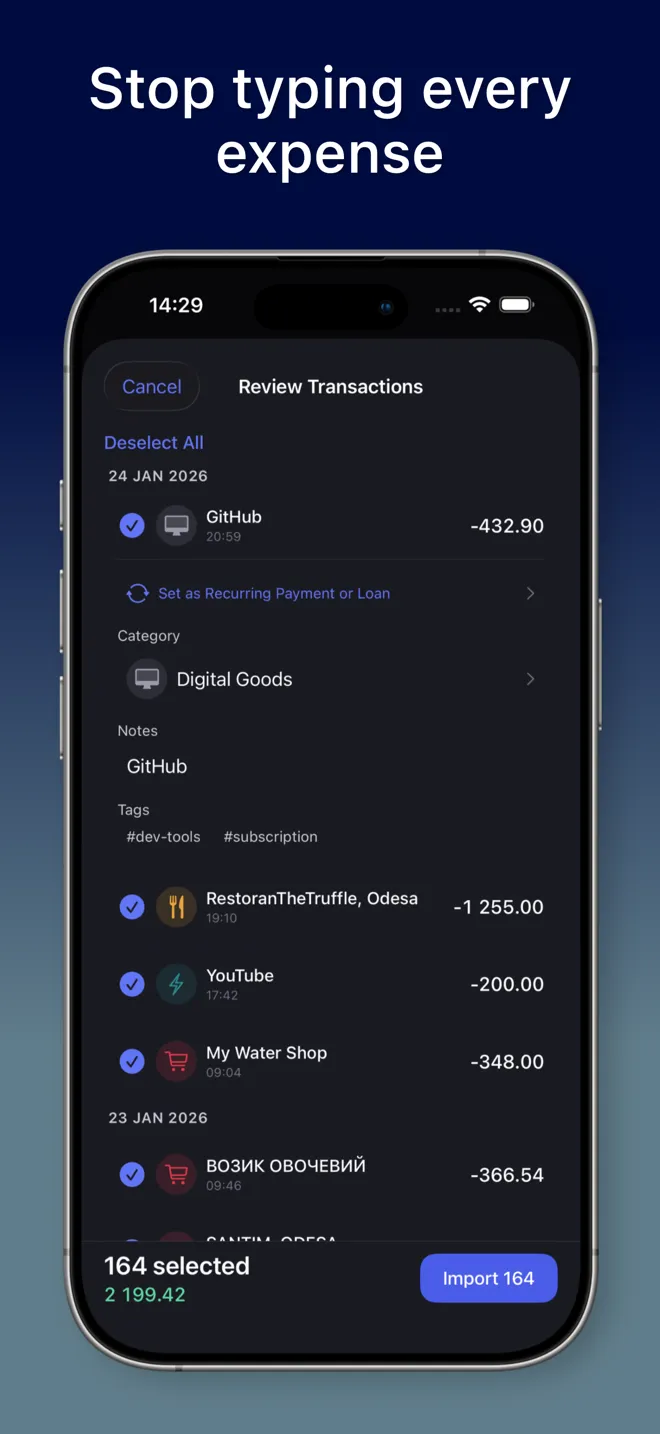
Try it in MoneyFlux: download last month’s statement from your bank, open it in the app and go through the review screen. You will see how your bank’s file comes through before you spend anything.
What MoneyFlux doesn’t do
- No bank feed. Each statement is a download you do yourself. Plan on a few minutes a month.
- Limited CSV. CSV import covers specific layouts: PrivatBank, Monobank and the Saldo app. For other banks, use OFX or QFX if they offer it.
- No currency conversion, so no single total across currencies.
- No budgets. There is a savings target as a share of your income, but no per-category limits.
- Apple only. iPhone and iPad, plus Apple silicon Macs running the iPad app. No Android, no web version.
If no budgets or no combined currency total would bother you, stop here. Better to know now than after a month of entering data.
Test it on one real month
Export last month’s statement, import it, and count the minutes from download to a finished set of categories. If it takes you under ten minutes and the totals match what your bank shows, you have an app you can keep using. If you spend most of that time fighting the file, the app doesn’t suit your bank, no matter how good the rest of it is. The step-by-step import guide shows what a clean run looks like.
Frequently asked questions
What is the best expense tracker app without bank linking?
The one that fits how you will get transactions in. If your bank exports OFX, QFX or a supported CSV, a file importer saves the most typing. If you only spend a little each week, manual entry is fine. There is no single best app for everyone.
Can an expense tracker work without connecting to my bank?
Yes. You enter purchases by hand, import a statement file you download from your bank, or log in-store payments with a phone shortcut. None of these gives the app your banking login.
Is it safe to use an expense tracker without linking my bank?
It removes the biggest risk, which is a third party holding access to your account. You still need to check where the app stores your records and whether it uploads your statement files.
Does MoneyFlux connect to my bank?
No. MoneyFlux has no bank feed. You download a statement from your bank and open it in the app, or log in-store Apple Pay purchases with a Shortcuts automation.
How often do I need to import a statement?
Once a month is enough for most people. Weekly works better if you want to catch overspending early. Duplicate rows are skipped, so overlapping dates do no harm.